> For the complete documentation index, see [llms.txt](https://docs.migration-center.com/llms.txt). Markdown versions of documentation pages are available by appending `.md` to page URLs; this page is available as [Markdown](https://docs.migration-center.com/24.1/installation-guide/java-configuration.md).
# Java configuration
## Checking the Java used
### Server Components
To check the Java version used by the Jobserver you can open the **wrapper.log** found under the **logs** folder under the Jobserver folder, and see the following lines:
```
WARNING|wrapper|24-01-31 16:29:16|YAJSW: yajsw-stable-12.13a
WARNING|wrapper|24-01-31 16:29:16|OS : Windows 10/10.0/amd64
WARNING|wrapper|24-01-31 16:29:16|JVM : Oracle Corporation/11.0.7/C:\Program Files\RedHat\java-11-openjdk-11.0.7-1/64
```
### Web Client
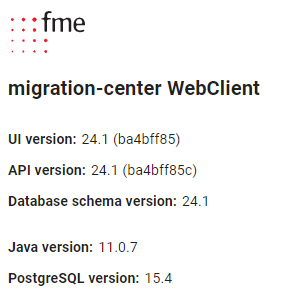
To check the Java version used by the Web Client you can open the [About ](/24.1/webclient-user-guide.md#about)section:
Web Client About Section
## Changing the Java used
When you need to change the **Java** installation on a machine with the **Jobserver** and **WebClient** **already installed**, the services for each component must be configured to use the new java.
### Server Components
Set the **JAVA\_HOME** (for JDK) or **JRE\_HOME** (for JRE) to point to the new Java installation folder.
{% hint style="warning" %}
First ensure there are no running jobs on the Jobserver
{% endhint %}
Go to the Server Components folder (default is **C:\Program Files (x86)\fme AG\migration-center Server Components x.xx**) and run the following two scripts in order using **Run as Administrator**:
1. **UninstallWinNTService.bat**
2. **InstallAsWinNTService.bat**
Then ensure the server is started again with the appropriate credentials if needed.
### Web Client
Go to the **C:\Program Files (x86)\fme AG\migration-center Web Client\bin** folder and open the **McWebClientw\.exe** file.
On the **Java** tab edit the **Java Virtual Machine** field to point to the **jvm.dll** file under your new Java install. In some java versions it's directly under `bin\server\jvm.dll` while in others it's under `\jre\bin\server\jvm.dll`. Here's an example on how the path should look:
`C:\Program Files\Java\OpenJDK\jdk-8.402\jre\bin\server\jvm.dll`
After setting this **restart the WebClient service** using the Windows Services window.
---
# Agent Instructions
This documentation is published with GitBook. GitBook is the documentation platform designed so that both humans and AI agents can read, navigate, and reason over technical content effectively. Learn more at gitbook.com.
## Querying This Documentation
If you need additional information that is not directly available in this page, you can query the documentation dynamically by asking a question.
Perform an HTTP GET request on the current page URL with the `ask` query parameter, and the optional `goal` query parameter:
```
GET https://docs.migration-center.com/24.1/installation-guide/java-configuration.md?ask=&goal=
```
`ask` is the immediate question: it should be specific, self-contained, and written in natural language.
`goal` is optional and describes the broader end goal you are ultimately trying to accomplish on behalf of the user. GitBook uses it to tailor the answer towards what is most useful for that goal.
The response will contain a direct answer to the question and relevant excerpts and sources from the documentation.
Use this mechanism when the answer is not explicitly present in the current page, you need clarification or additional context, or you want to retrieve related documentation sections.